Cashier Instructions
1. Order Placement module下单模块
1.1 Ordering点单
1.1.1 Cash register ordering-packing 收银台点单-打包
1.1.2 Cash register - dine-in service 收银台-堂食
1.1.3 Ordering through a QR code for meal orders 点餐码点餐
1.1.4 Cashier - Self-service Ordering 收银台-自助点单
1.1.5 Independent table layout 独立桌码
1.1.6 Dynamic QR Code 动态桌码
1.2 How to Pending Orderr/Retrieve Order 如何挂单/取单
1.3 discount area 折扣区
1.3.1 Single product discount/price adjustment 单商品折扣/改价
⭐1.3.2 Add discount 减价抹零
1.3.3 NO GST 整单免GST
1.3.4 Erase Service Charge 抹去服务费
1.4 Remarks 备注
1.4.1 Remarks for individual products 单商品备注
1.4.2 Notes on the entire order 整单备注
1.4.3 Edit Notes 编辑备注
1.5 Cancel All 整单取消
1.6 Cash box 手动开启钱箱
1.7 Split Tables/Merge Tables/Transfer Table 拆桌/合桌/转台
1.7.1 Split Tables 拆桌
1.7.2 Merge Tables 合桌
1.7.3 Transfer Table 转台
1.8 Payment 支付
1.8.1 General Payments 普通支付
1.8.2 Member Payments 会员支付
1.9 View Adjustments 视图调整
1.9.1 Modify the size of the category column 修改分类栏的尺寸
1.9.2 Product display with or without pictures 商品展示有图无图
1.9.3 Product sorting 商品排序
⭐1.10 Modify the Dish Name/Price/Edit 修改商品名称/价格/库存
1.10.1 Modify Name/Price 修改名称/价格
1.10.2 Modify the Edit修改商品库存
1.11 Open item
1.12 Receipt Printing Confirmation 收银小票打印确认
2. Membership 会员
2.1 Member creation and login 会员创建和登录
⭐2.2 View membership base information 查看会员基础信息
2.3 Member Recharge 会员充值
2.4 View member usage records 查看会员使用记录
⭐2.5 Issuance/use of membership coupons 会员优惠卷的发放/使用
3. KDS
3.1 How to Select Kitchen 如何切换厨房
3.2 Find orders quickly 快速查找订单
3.3 Complete the production of the order product 完成订单商品制作
3.4 Withdraw an order for pickup 撤回待取餐的订单
3.5 View the details of the order to be picked up 查看待取餐订单详情
3.6 Entering the Order 输入订单
3.6.1 Edit Shortcuts 编辑快捷方式
3.7 Pick up meals 取餐
3.8 Withdraw an order that has already been picked up 撤回已取餐的订单
4. Orders and reports 订单和报表
4.1 Orders 订单
⭐4.1.1 Inquiry Order 查询订单
4.1.2 Sending to the mailbox 发送到邮箱
⭐4.1.3 Modify the payment method 修改支付方式
4.1.4 Modify the order price 修改订单价格
4.1.5 Print Kitchen Order/Print Bill 再次厨打/打印小票
⭐4.1.6 Refunds 退款
4.1.7 Return to dine in 返回桌台
4.1.8 Cancel order 取消订单
4.2 Reports 报表
4.2.1 Daily Report 日结单
4.2.2 Hourly Sales Report 小时销售报表
4.2.3 Multi Day Report 选择多天查询
4.2.4 Member Marketing Report 会员营销报表
4.2.5 Cash box manual open record 钱箱手动开启记录
4.2.6 Business/shift data 营业/班次数据
4.2.7 View reports for non-current days 查看非当天的报表
4.2.8 Printing Reports 打印报表
5. Inventory 库存管理
6. Cash Manage 现金管理
6.1 Manually add income 手动添加收入
6.2 Manually add expenditure 手动添加支出
6.3 View historical settlement records 查看历史清算记录
6.4 How to liquidate 如何清算
6.5 Increase the reserve fund 增加备用金
7. Deposit and Queue 押金和排队
7.1 Deposit 押金
7.1.1 How to deposit 怎么记录押金
7.1.2 How to view/modify the deposit 怎么查看/修改押金
7.1.3 How to use the deposit 如何使用押金
7.2 Queue 排队
⭐common problem 常见问题
Adjust consumption points 调整消费积分
How to modify consumption points 如何修改消费积分
How can members add points after their first purchase and registration 会员首次消费后注册,如何添加积分
SMS top-up 短信充值
Ajuste de Idoma 调整语言
Cash register white screen 收银机白屏
he IP address of the cash register and the card machine is the same 收银台和刷卡机IP 地址一致
Exit the screen dominance mode 退出霸屏模式
Manually add member 收银台手动添加会员
How to use Open item 如何使用Open item
Receipt calculation 小票计算
Custom table Settings 自定义桌台设置
How to arrange the table 如何摆放桌子
How to add regional text 如何添加区域文字
How to delete content 如何删除内容
Coupon difference 优惠券
PR use PR使用
Order association PR 订单关联PR
Order cancellation/modification PR 订单取消/修改PR
Difference between Takeaway & Virtual Table 打包&虚拟桌台的区别
Printer Failure Emergency Plan 打印机无法打印应急方案
Prevent Malicious Orders 防止顾客恶意下单
Refund Operation Guide 退款操作指南
Mall Voucher Payment Guide 商场券付款操作指南
-
+
首页
Mall Voucher Payment Guide 商场券付款操作指南
本指南用于规范商场券与其他支付方式组合付款时的收银操作,确保 POS 中记录的支付方式和金额与实际收款一致,避免日结单及月底对账出现差异。 This guide explains how to record a mall voucher together with other payment methods. The payment method and amount recorded in the POS must match the actual payment collected to prevent differences in the Daily Closing Report and month-end reconciliation. --- ## 1. 商场券在 POS 中的记录方式 **How a Mall Voucher Is Recorded in the POS** 商场券是 POS 中的自定义支付方式,例如 `Voucher $5` 或 `Mall Voucher $100`。POS 只会按照收银员选择的支付方式和输入的金额生成记录,不会检查顾客实际使用的商场券面值。 A mall voucher is set up as a custom payment method in the POS, such as `Voucher $5` or `Mall Voucher $100`. The POS records the payment method and amount entered by the cashier. It does not check the actual value of the voucher used by the customer. > **重要:** POS 中记录的支付方式和金额必须与实际收款一致。 > > **Important:** The payment method and amount recorded in the POS must match the actual payment collected. --- ## 2. 商场券与其他支付方式一起付款 **Using a Mall Voucher with Another Payment Method** 如果商场券不能支付订单的全部金额,剩余金额需要使用其他支付方式时,必须选择 `Multi-Payment`,不能直接点击商场券完成整笔订单。 If the mall voucher does not cover the full order amount and the balance will be paid using another payment method, always select `Multi-Payment`. Do not complete the whole order by selecting the mall voucher directly. ### 操作步骤 **Steps** 1. 在支付方式页面点击 `Multi-Payment`。 Tap `Multi-Payment` on the payment method screen. 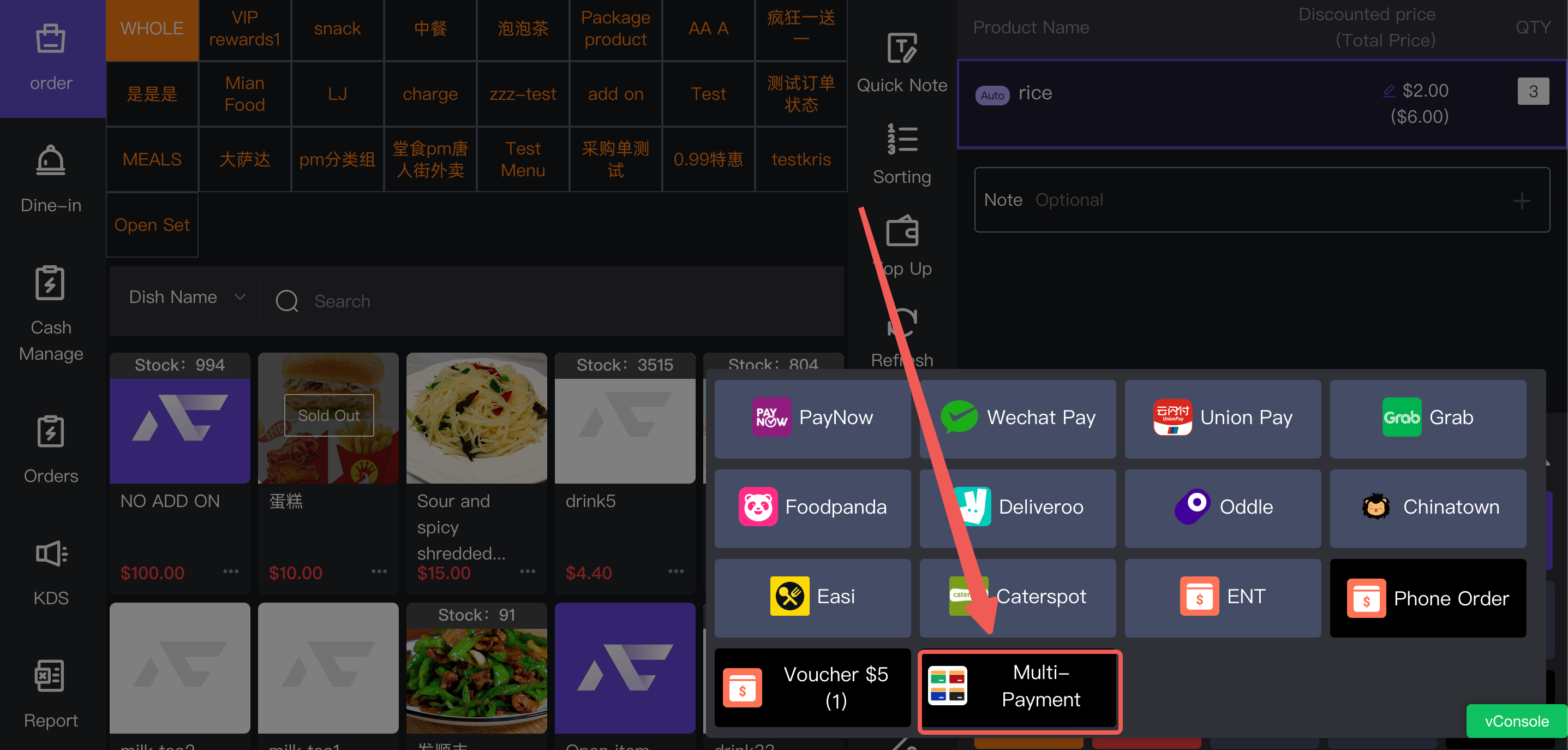 2. 选择对应的商场券支付方式,并输入商场券的实际使用金额。 Select the correct mall voucher payment method and enter the amount covered by the voucher. 3. 选择用于支付剩余金额的支付方式,例如现金或系统中已有的其他支付方式。 Select the payment method used for the remaining balance, such as Cash or another payment method available in the POS. 4. 输入该支付方式实际收取的金额,确认页面显示的 `Remaining` 为 `$0`。 Enter the amount collected using that payment method and make sure `Remaining` shows `$0`. 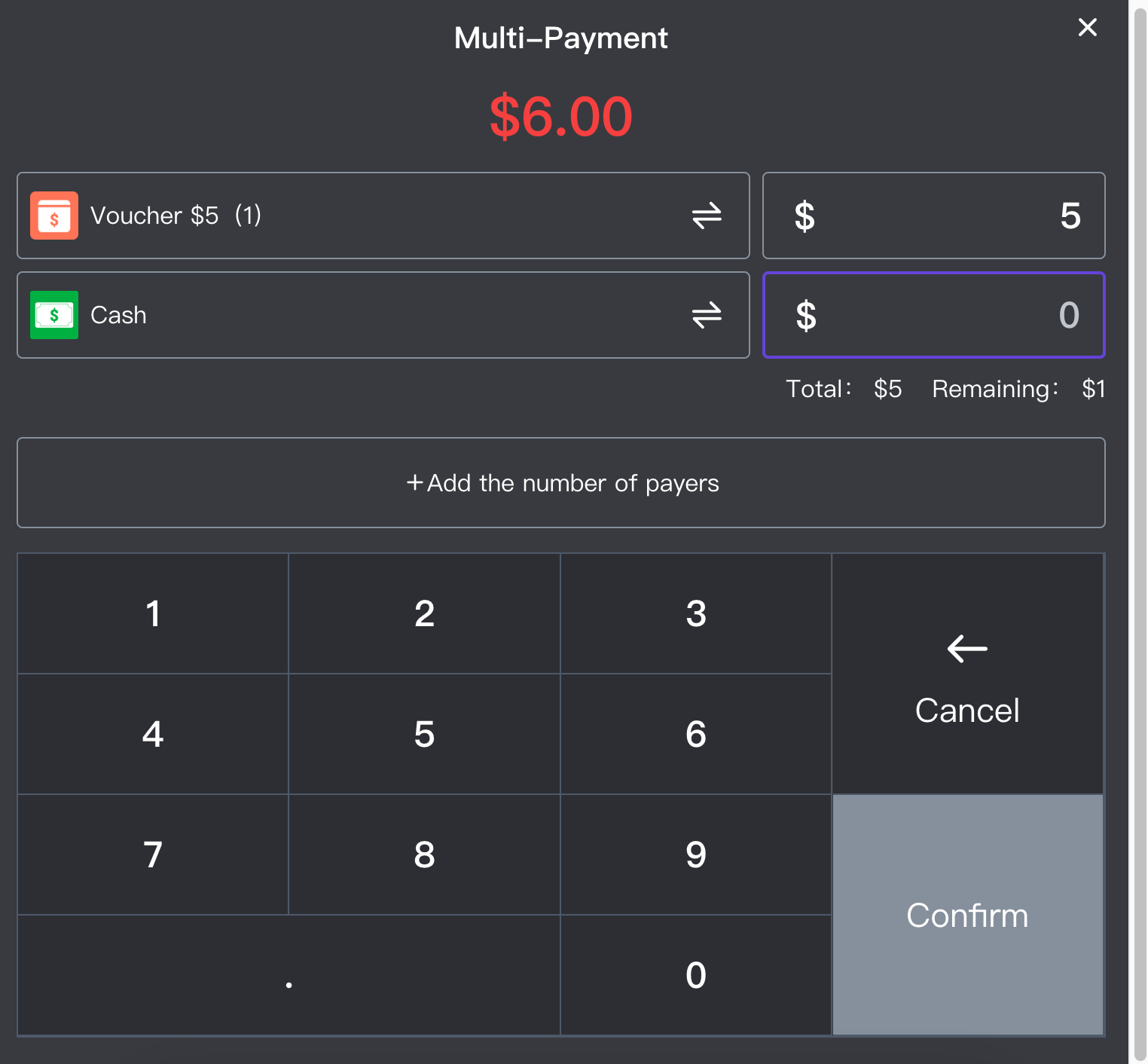 5. 核对每种支付方式和金额,确认无误后完成订单。 Check each payment method and amount before completing the order. --- ## 3. 收取剩余金额 **Collecting the Remaining Balance** `Multi-Payment` 用于在 POS 中分别记录每种支付方式和金额。由于系统目前无法通过 AllinPay 自动完成拆分收款,如果剩余金额使用现金以外的支付方式,员工需要通过对应的支付渠道手动完成收款。 `Multi-Payment` records each payment method and amount separately in the POS. The system currently cannot process a split payment automatically through AllinPay. If the remaining balance is paid by a non-cash method, the cashier must collect it manually through the correct payment channel. 完成订单前,必须确认顾客实际支付的方式和金额与 POS 中的记录一致。 Before completing the order, make sure the actual payment method and amount collected from the customer match the POS record. ### 示例 **Example** 订单总额为 `$101.53`,顾客使用 `$100` 商场券,剩余 `$1.53` 使用其他支付方式。正确的记录方式是: The order total is `$101.53`. The customer uses a `$100` mall voucher and pays the remaining `$1.53` using another payment method. Record the payment as follows: - 商场券:`$100.00` - 其他实际使用的支付方式:`$1.53` - Mall Voucher: `$100.00` - Other payment method actually used: `$1.53` --- ## 4. 请勿直接使用商场券完成整笔订单 **Do Not Use the Mall Voucher to Complete the Full Order** 如果订单总额是 `$101.53`,收银员直接点击 `Mall Voucher $100` 完成付款,POS 会把整笔 `$101.53` 记录为商场券。即使员工另外通过其他渠道收取了 `$1.53`,该笔收款也不会正确记录在 POS 中。 If the order total is `$101.53` and the cashier completes the payment by selecting `Mall Voucher $100` directly, the POS will record the full `$101.53` as a mall voucher payment. Even if the cashier collects the remaining `$1.53` through another channel, that payment will not be recorded correctly in the POS. 这会导致实际收款、日结单和月底对账中的支付方式不一致。 This will cause the actual payment collected, the Daily Closing Report and the month-end reconciliation records to be different. --- ## 5. 收银员必须记住 **Cashier Checklist** - 商场券与其他支付方式一起使用时,必须选择 `Multi-Payment`。 - 按照实际使用金额记录商场券和剩余付款。 - 现金以外的剩余付款,需要通过对应渠道手动完成收款。 - 完成订单前,确认实际收款与 POS 记录完全一致。 - Always select `Multi-Payment` when a mall voucher is used together with another payment method. - Record the actual voucher amount and the remaining payment separately. - Collect any non-cash balance manually through the correct payment channel. - Before completing the order, make sure the actual payment matches the POS record.
pos
2026年9月20日 10:35
转发文档
收藏文档
上一篇
下一篇
手机扫码
复制链接
手机扫一扫转发分享
复制链接
Markdown文件
PDF文档(打印)
分享
链接
类型
密码
更新密码